
How to Set Up Xverse Wallet: Step-by-Step Tutorial for Beginners
- 26 Dec 2025
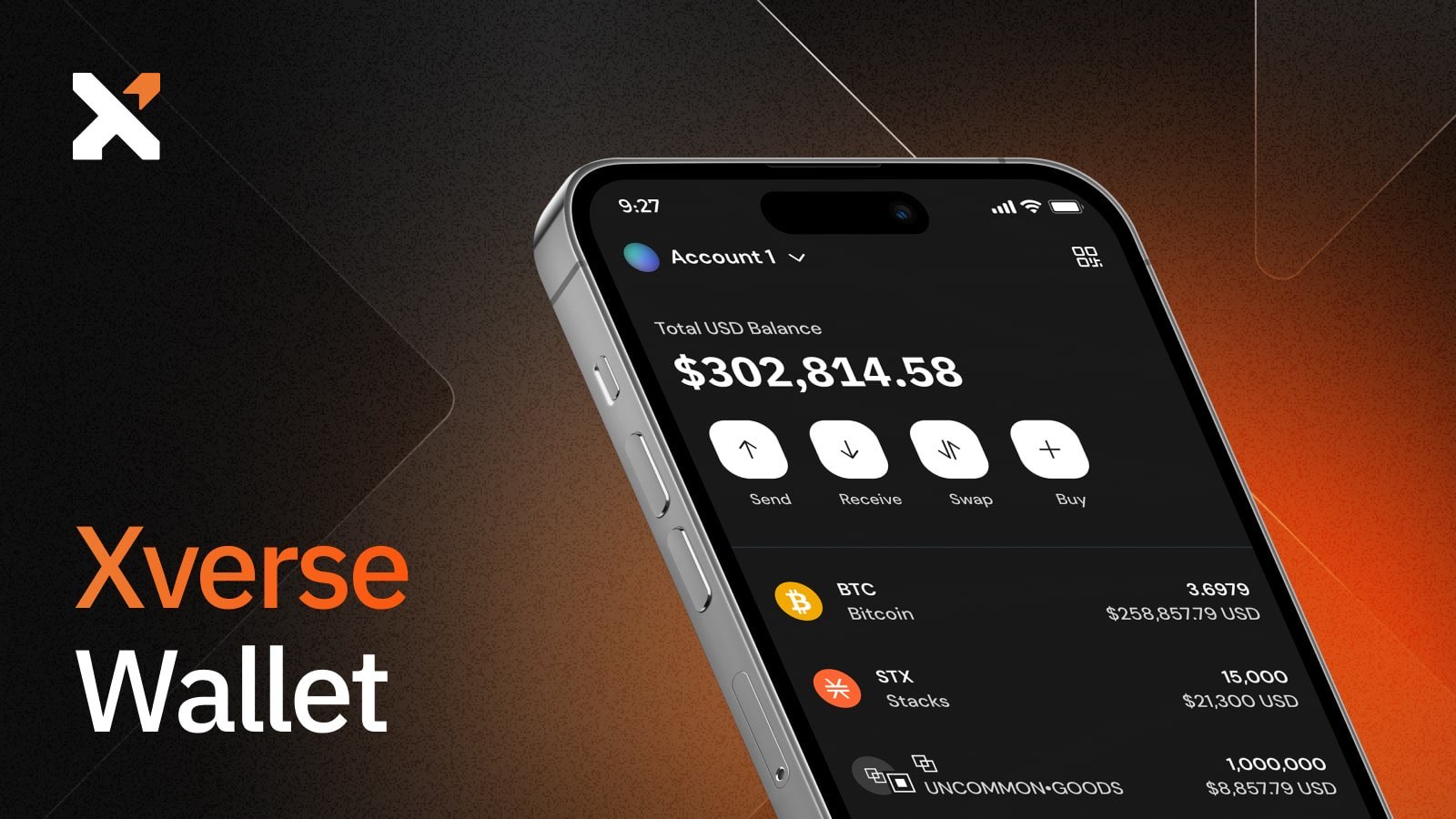
Xverse is one of the most popular non-custodial Bitcoin wallets in 2026, especially for beginners who want to explore beyond basic Bitcoin holding. It supports native Bitcoin (BTC), Ordinals inscriptions, Runes, BRC-20 tokens, Rare Sats, and Bitcoin Layer-2 ecosystems like Stacks (STX), Starknet, Spark, Mezo, and Bitlayer.
What sets Xverse apart is its beginner-friendly interface combined with advanced features: you can buy BTC directly in the app, swap assets, connect to Bitcoin DeFi apps, mint NFTs, and even integrate with hardware wallets like Ledger for extra security. It’s available as a mobile app (iOS and Android) and Chrome browser extension, making it versatile for daily use.
As a self-custodial wallet, you control your private keys—no one else can access your funds. This aligns perfectly with the core principles outlined in What is Cryptocurrency? A Complete Beginner’s Guide to Blockchain in 2026.
In this guide, we’ll walk you through setting up Xverse from scratch, backing up your recovery phrase, and getting ready to receive your first Bitcoin. We’ll also cover importing an existing wallet and basic security best practices to avoid the 10 Biggest Crypto Mistakes Beginners Make in 2026.
Why Choose Xverse as Your Bitcoin Wallet?
Before diving into the setup, here’s why many beginners prefer Xverse over other options:
- Full Bitcoin Web3 Support: Unlike basic wallets, Xverse lets you manage Ordinals (Bitcoin NFTs), Runes protocols, and Rare Satoshis without risking accidental spends.
- Layer-2 Integration: Seamlessly handle Stacks (STX) for staking rewards, plus emerging chains like Starknet and Spark.
- Built-in Buying and Swapping: Purchase BTC directly or swap between assets—no need to leave the app.
- Hardware Wallet Compatibility: Connect Ledger or Keystone for cold storage while keeping the user-friendly Xverse interface.
- Free and Open-Source Elements: No subscription fees, and parts of the code are transparent for community trust.
For a broader comparison of beginner-friendly wallets, check out Best Crypto Wallets for Beginners in 2026: Top Picks and Reviews.
Prerequisites Before Setting Up Xverse
- A smartphone (iOS or Android) or computer with Chrome browser.
- A secure, private location to write down your recovery phrase.
- Never share your seed phrase or password with anyone—this is the key to avoiding common scams.
Step-by-Step Guide to Setting Up Xverse Wallet
Follow these steps carefully. The process takes less than 5 minutes.
Step 1: Download Xverse from Official Sources
Always download from official links to avoid fake apps:
- Mobile (Recommended for Beginners):
- iOS: App Store – Search “Xverse: Bitcoin Crypto Wallet” or visit https://apps.apple.com/app/xverse-bitcoin-crypto-wallet/id1552272513
- Android: Google Play Store – Search “Xverse Wallet” or visit the official site.
- Browser Extension (Great for Desktop DeFi and Ordinals):
- Visit https://www.xverse.app/download and click the Chrome option, or go directly to the Chrome Web Store.
Warning: Only use https://www.xverse.app as your source. Fake sites can steal your funds.
Step 2: Install and Open the App
- Install the app or extension.
- Open Xverse. You’ll see the welcome screen with two options: Create New Wallet or Restore Wallet.
Step 3: Create a New Wallet
- Select Create New Wallet.
- The app will generate a 12-word secret recovery phrase (also called seed phrase).
- Write it down exactly in order on paper. Do not screenshot or store digitally.
- Confirm the phrase by re-entering the words in the correct order.
This phrase is your master backup. If you lose your device, you can restore everything with it. Store it offline in a safe place—losing it means permanent loss of funds.
For more on seed phrase security, see our guide on How to Transfer Crypto from Exchange to Wallet Safely in 2026.
Step 4: Set Up Security
- Create a strong password (or PIN on mobile).
- Enable biometric login (Face ID or fingerprint) for convenience.
- On mobile, you can also enable additional app lock features.
Xverse encrypts everything on your device—no data is sent to servers.
Step 5: Explore Your New Wallet
- Your dashboard will show separate accounts for Bitcoin (Native Segwit and Taproot addresses) and Stacks/Ordinals.
- Tap Receive to view your Bitcoin address (starts with bc1q for Segwit or bc1p for Taproot).
- Use Native Segwit (bc1q) for regular BTC transfers to avoid higher fees.
Xverse automatically separates addresses: Taproot for Ordinals/Runes to prevent accidental spending of inscribed sats.
Step 6: Fund Your Wallet (Optional but Recommended)
To test everything:
- Buy BTC directly: Tap Buy and follow the on-ramp (partners like MoonPay or others based on your location).
- Or transfer from an exchange: Use your Xverse receive address.
New to buying? Follow How to Buy Bitcoin for Beginners: Complete Step-by-Step Guide 2026 or How to Buy Crypto with Credit Card or PayPal in 2026.
Once funded, practice sending a small amount to another address or back to an exchange.
Importing an Existing Wallet into Xverse
If you already have a Bitcoin or Stacks wallet (e.g., from Unisat, Leather, Phantom, OKX, or Magic Eden):
- Choose Restore Wallet on the welcome screen.
- Select your previous wallet provider (Xverse makes this easy with guided import).
- Enter your 12/24-word seed phrase.
- Xverse auto-detects the correct paths and imports balances, Ordinals, and assets.
This is useful if you’re switching from another wallet mentioned in our other tutorials, like How to Set Up MetaMask Wallet: Step-by-Step Tutorial for Beginners 2026.
Advanced Features for Beginners to Explore Later
Once set up:
- Connect to dApps: Browse Bitcoin marketplaces like Magic Eden for Ordinals.
- Stack STX: Earn Bitcoin rewards (similar to Dollar Cost Averaging Explained: The Best Strategy for Crypto Beginners in 2026).
- Hardware Integration: Add Ledger support via the browser extension for cold storage.
- Lightning Payments: Use integrated Lightning for fast, cheap transactions.
Common Issues and Troubleshooting
- Invalid Seed Phrase: Double-check spelling and order.
- No Balance Showing: Wait for sync or refresh—Ordinals can take time to index.
- High Fees: Use Native Segwit addresses for regular transfers.
- Always update to the latest version for security fixes.
If issues persist, visit the official support at https://support.xverse.app.
Final Security Tips
- Never enter your seed phrase on any website or app except during restore.
- Enable 2FA on linked exchanges.
- Practice with small amounts first.
- Master your mindset to avoid FOMO-driven mistakes—read Crypto Investing Psychology: Mastering Emotions and Avoiding FOMO as a Beginner in 2026.
Xverse makes entering the Bitcoin ecosystem straightforward and secure. Once set up, you’re ready to safely buy, hold, and explore assets like Bitcoin and Ethereum (see Bitcoin vs Ethereum: Which is Better for Beginners in 2026 and Top 10 Cryptocurrencies Explained for Absolute Beginners in 2026).
Happy stacking—and welcome to self-custody!
Stay in the loop →
Powered by EverRank, and created by GalaxyBuilt
Get Weekly DeFi Alpha in Your Inbox
Weekly DeFi Alpha
56k+ traders getting my private newsletter every week
Join To Download our Ebook Free
Read Next_
Best Crypto Debit Cards That Pay Rewards in 2026
Beginner-friendly guide to the best crypto debit cards in 2026, featuring cashback, token rewards, and real-world usability.
Best Crypto Wallets for Beginners: Top Picks and Reviews
Choosing the right crypto wallet is crucial for security and ease of use. This 2026 guide reviews the best crypto wallets for beginners, comparing software, hardware, and mobile options with pros, cons, and setup tips.
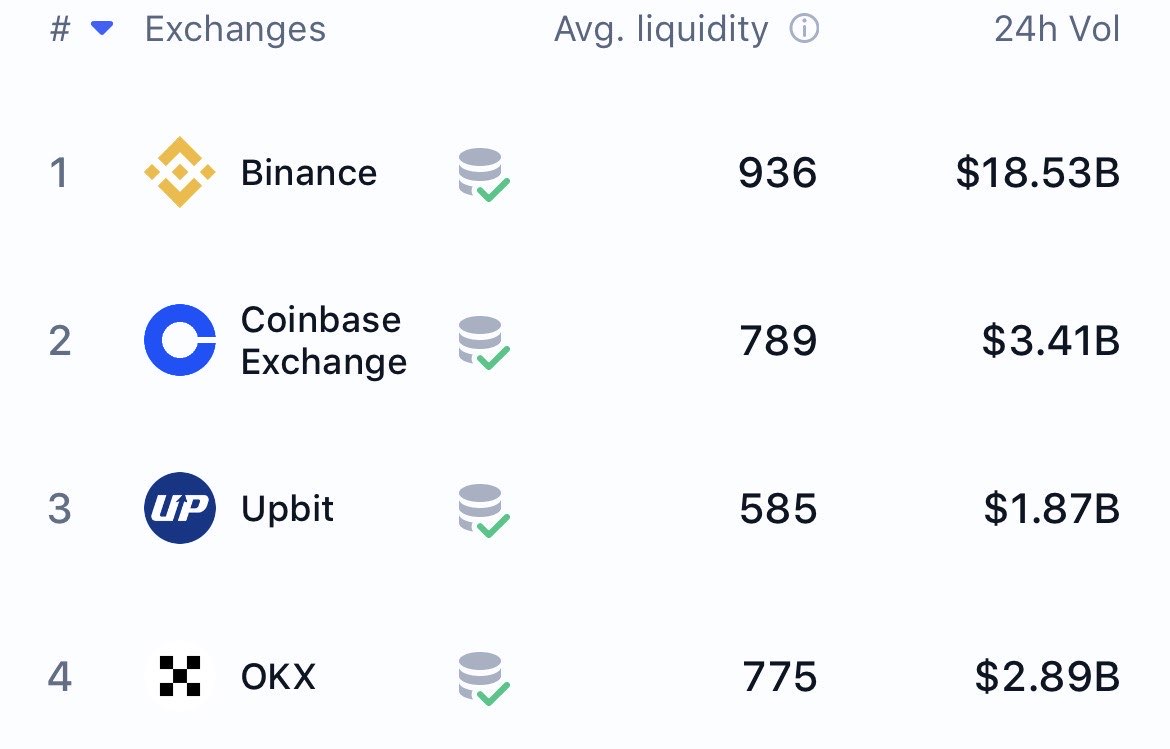
The Best Crypto Exchanges (CEX + DEX) for Bitcoin, Ethereum & Solana + Altcoins (Global + US)
Updated for 2026: Compare the top centralized + decentralized exchanges with the lowest fees, biggest bonuses, and most altcoins. Full rankings for global, US, and DEX users — includes referral links to claim up to $30,000+ in bonuses.